
I have a Tesla Powerwall. How do I use the Tesla app, set my Backup Reserve and know what happens in a blackout?
Short answer. You run a Powerwall from the Tesla app. The key settings are Backup Reserve (the share of charge kept for blackouts, 20% by default), the mode (Self-Powered, Time-Based Control, which Tesla also calls Savings mode, or Backup-only) and Storm Watch, which charges the battery up before severe weather. Updates arrive automatically over your Wi-Fi.
Safety first. Never open a switchboard, remove a cover from your battery or inverter, or touch any wiring. Anything beyond the app, a light you can read from a safe distance, or your own router is a job for a licensed electrician. If you see smoke, smell burning, hear arcing or see water on or near the unit: keep everyone away, switch off at your main switch only if it is safe to do so, and call 000 if there is any fire or smoke.
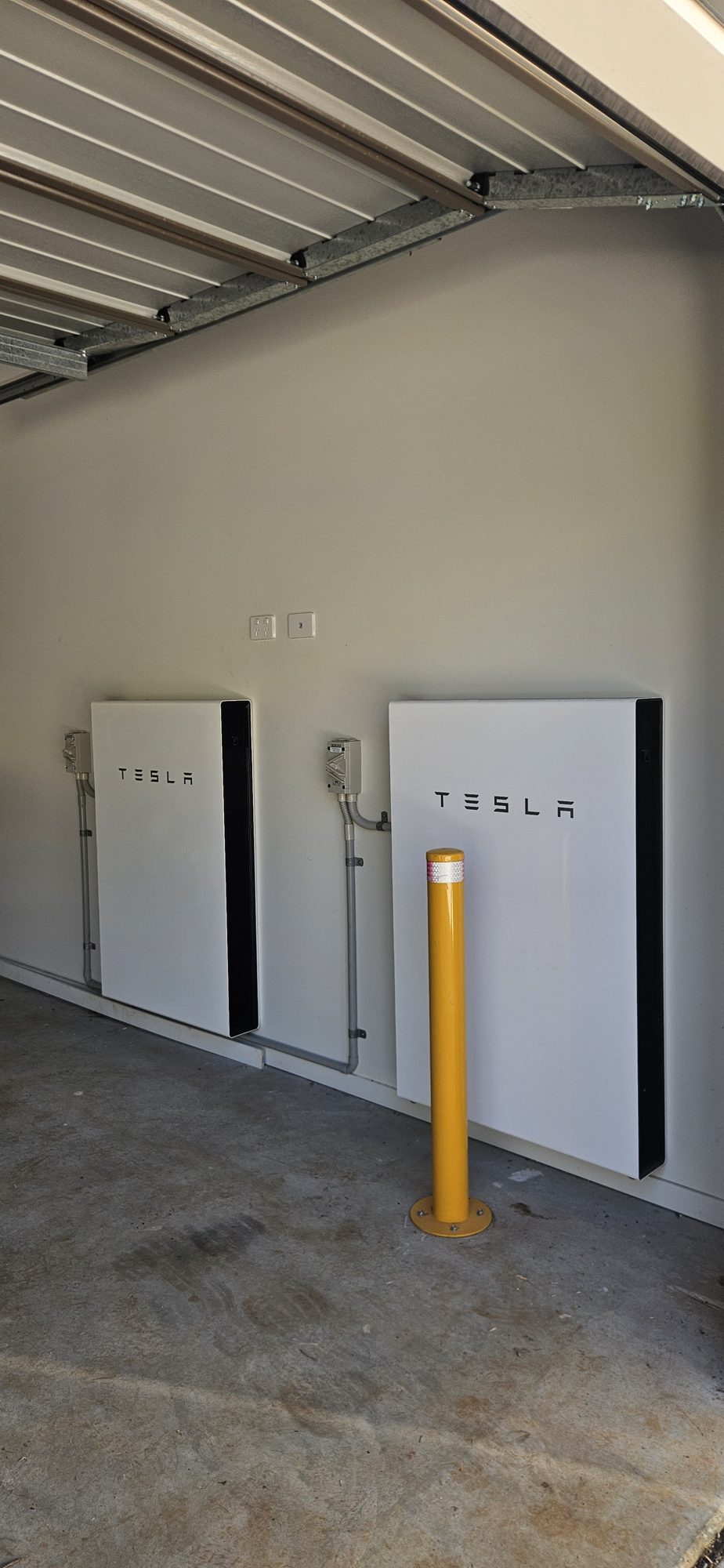
Powerwall 2 and Powerwall 3
Both store 13.5 kWh and are managed in the same app. Tesla describes Powerwall 3 as having a built-in solar inverter, so solar connects to it directly, while Powerwall 2 is added to a separate solar inverter. Powerwall units work with a Gateway (Backup Gateway 2 or Gateway 3) or Backup Switch, which handles the switch-over in a blackout. Tesla says the Powerwall, gateway and backup switch are not user-serviceable and must be handled by Tesla or a certified installer.
Using the Tesla app
- Sign in with the Tesla account your system was registered to and select your energy system.
- The home screen shows the live flow between solar, Powerwall, home and grid, and the charge level.
- Add another person: select your energy system, tap Settings, then Manage Access, then Add User and send an invitation. Tesla says they need a Tesla account and the latest version of the app, and an added user can use all the energy features, so share it with people you trust.
Backup Reserve, modes and Storm Watch
- Backup Reserve: the part of the Powerwall’s charge automatically saved for backup. Tesla’s default is 20%. You change it with the slider under Settings, then Powerwall. Higher means more blackout protection; lower leaves more charge for everyday use. The range your app offers can vary by region, so go by the slider.
- Self-Powered (the default): stores spare solar during the day and powers the home at night.
- Time-Based Control (Tesla’s app may call it Savings mode): charges when your electricity rates are low and powers the home when they are high, using the rate plan set in the app.
- Backup-only: keeps the Powerwall full for outages.
- Storm Watch: when a severe weather warning is issued for your area (Tesla lists examples such as severe thunderstorm, high wind, flood, bushfire and tropical cyclone warnings, using Bureau of Meteorology data in Australia), the Powerwall charges to full, sends a notification, and returns to normal when the event ends.
Our general explainers: Backup Reserve and battery modes.
What the lights mean
Tesla’s own table for Powerwall 3 logo light: solid white = normal; flashing white = idle, and will go to sleep if nothing is happening; off = off or asleep; flashing red = an inverter fault (such as AFCI, GFCI or rapid shutdown). Powerwall 3 Expansion units have no light at all. The Backup Switch has a small LED under its conduit hub: solid = powered and talking to the Powerwall; flashing = powered but no communication; off = no power. Powerwall 2 systems vary by gateway, so if your unit shows something you cannot place, photograph it and call us.
What happens in a blackout
When the grid drops, the gateway disconnects your home from the grid and the Powerwall powers your backed-up circuits. If it brownouts or trips during backup, Tesla’s troubleshooting says to reduce the loads and check that the load breakers have not opened. Switching loads off to stretch the charge is sensible in a long outage; Tesla’s own best-practice page for outages is linked below. A typical install of ours backs up the whole home unless you ask us to leave out circuits. If your Powerwall did not take over when the power went out, call us: see why did my battery not switch over in a blackout?
Firmware
Tesla sends software updates to the Powerwall automatically over your internet connection (Wi-Fi is the most common way), so there is nothing to download. The Powerwall needs to stay connected for updates, and Tesla says an extended period offline can affect warranty cover. If the app shows it offline, see our Wi-Fi starting guide.
Warranty
Tesla’s Australia and New Zealand Powerwall warranty is ten years from installation, with at least 70% of the original 13.5 kWh capacity at ten years, and covers Powerwall 2, Powerwall 3 and Powerwall 3 Expansion. Tesla says its warranty depends on the Powerwall being registered and connected to the internet for remote updates, and that it will honour at least four years either way. Our 25-year workmanship warranty covers our installation work only. See where to find your warranty documents.
Safe first steps if something looks wrong
- Check the Tesla app for an alert or the system showing offline.
- Check your router and internet on another device.
- Photograph any lights from a safe distance and note the time.
- Do not press the reset or manual override switches on the gateway unless Tesla support or we tell you to.
- Call us with the photo and a screenshot of the app.
Read more: Tesla Powerwall from Sun Connect Solar, Sungrow, Solax and Tesla batteries and Powerwall 2 vs Powerwall 3
When to call us
If we installed your system, call us on 0483 903 020. Our service help for existing customers is free: we start by working through it with you by phone. If you are not yet a customer, a service call is $250 + GST, which covers one hour on site within 20 km of Mullumbimby; travel further out is quoted separately. Contact us or call 0483 903 020 (Mon-Fri 7am-6pm, Sat 7am-4pm). We do not repair systems we did not install.
Quick questions
How do I give my partner access to our Powerwall in the Tesla app?
In the Tesla app, select your energy system, tap Settings, then Manage Access, then Add User and send an invitation. They need their own Tesla account and the latest app.
What Backup Reserve should I use?
Tesla’s default is 20%. A higher reserve keeps more charge for blackouts and a lower one leaves more for daily savings. If you want a low reserve most of the time, Storm Watch can raise the charge before severe weather.
Does my Powerwall still work if the Wi-Fi is down?
Tesla says an offline Powerwall keeps running in its last mode and still provides backup in an outage, but you cannot monitor it in the app, it cannot update, and a long period offline can affect the warranty.
What does a flashing red logo mean on a Powerwall 3?
Tesla lists a flashing red logo as an inverter fault, such as an AFCI, GFCI or rapid shutdown condition. Do not reset anything; call us.
Can I press the reset or manual override switch on the Gateway?
Only if Tesla support tells you to, or during a confirmed grid outage. Tesla warns that wrongly using the manual override can damage the unit and void the warranty, so please call us first.
Sources
Last checked 7 October 2026. Only the manufacturer’s, the network’s or the government’s own documents are used; app menus and defaults change between models and versions, so if your screen looks different, call us rather than guess.
- Tesla Australia support: Backup Reserve
- Tesla Australia support: Storm Watch
- Tesla support: Time-Based Control (Savings mode)
- Tesla support: Powerwall modes
- Tesla support: Manage Access to your Tesla energy system
- Tesla Australia support: Software Updates
- Tesla Australia support: Best Practices During Power Outages
- Tesla Energy Library: Powerwall 3 LED behaviour
- Tesla Energy Library: Powerwall 3 owner manual, backup troubleshooting
- Tesla’s official Powerwall warranty for Australia and New Zealand
Related guides
- What is Backup Reserve and what should I set it to?
- What are the battery modes (self-consumption, time-based, backup) and which should I use?
- Why did my battery not switch over in a blackout?
- How do I update the app, and does my battery update itself?
- Where do I find my battery warranty and the official warranty documents?
- I have a Sungrow, Solax or Tesla system. Where do I start with the app and Wi-Fi?
- Whole home vs essential circuits
- All help and how-to guides