How do I read the GoodWe SEMS+ app?
Short answer. Open SEMS+, tap your plant (GoodWe’s word for your home system) and the energy-flow diagram shows solar, battery, grid and home. Battery percentage is the SOC, alarms are under Alarm on the home page, and plant messages list events.
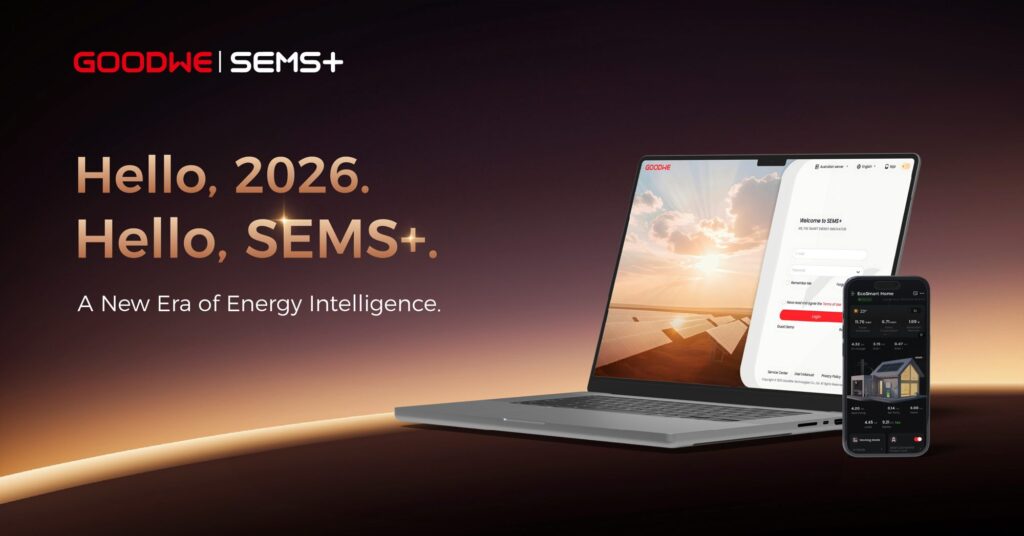
SEMS+ is GoodWe’s app for the ESA battery systems we install. We link you to your plant when we commission the system. Note that GoodWe has older apps (SEMS Portal) that look different: this guide is for SEMS+ only.
Safety first. The app is the safe way to look at your system. Never open a switchboard, remove a cover from your battery or inverter, or touch any wiring. Anything beyond the app, a light you can read from a safe distance, or your own router is a job for a licensed electrician. If you see smoke, smell burning, hear arcing or see water on or near the unit: keep everyone away, switch off at your main switch only if it is safe to do so, and call 000 if there is any fire or smoke.
A two-minute tour
- Get the app. Search “SEMS+” in Google Play or the App Store. GoodWe lists Android 7.0 or later and iOS 15.1 or later, and says the phone needs internet, Wi-Fi and Bluetooth.
- Your plant. Your home appears as a plant on the home page. If you have more than one, switch between them from the plant list in the side menu.
- The plant screen shows the plant name, status and last update time, today’s weather, energy generated, power used, electricity bought and sold, an energy-flow diagram you can switch between 2D and 3D, and power curves and charts.
- Reading the flow. Solar (PV) is what the panels are making now. Battery is charging or discharging, with its percentage, called state of charge or SOC. Grid is buying or selling. Load or Home is what the house is using.
- Battery details. Open the device to see SOC, whether it is charging or discharging, and the charge or discharge power.
- Alarms. On the home page tap Alarm to see alarm information for every plant on your account. Plant messages list alarms, events and notices. Do not try to read fault codes yourself: send us a screenshot.
About the money figures
Revenue figures only appear if a tariff has been entered in the plant settings, and we do not explain savings or revenue numbers because they depend on your bills and retailer. Ask us if you want to talk it through.
GoodWe’s manual is written for one version of the app and says the actual display prevails, so if a menu has moved, call us rather than guess.
Read more: GoodWe batteries from Sun Connect Solar
When to call us
If we installed your system, call us on 0483 903 020. Our service help for existing customers is free: we start by working through it with you by phone. If you are not yet a customer, a service call is $250 + GST, which covers one hour on site within 20 km of Mullumbimby; travel further out is quoted separately. Contact us or call 0483 903 020 (Mon-Fri 7am-6pm, Sat 7am-4pm).
Quick questions
What does SOC mean?
State of charge: how full your battery is, as a percentage.
Why do I see no revenue figures?
They only show once a tariff is set in the plant settings. We do not promise savings from those figures.
Is SEMS+ the same as SEMS Portal?
No. They are different apps. We use SEMS+ for GoodWe ESA customers, so look for SEMS+.
I cannot see my plant. What now?
That is an account link problem. Call us and we will connect it for you.
Sources
Last checked 6 October 2026. Only the manufacturer’s, the network’s or the government’s own documents are used; app menus change between versions, so if your screen looks different, call us rather than guess.
- GoodWe's official SEMS+ App User Manual, V1.6 (20 Sep 2026), sections 1.2, 2.1.4, 2.1.6 and 2.2.2
- GoodWe's official ESA Series 3-10kW User Manual, V1.8 (28 Jul 2026), sections 8.1 and 9.5.1