
I have a Sungrow SBR battery. How do I use the iSolarCloud app and what do the lights mean?
Short answer. The SBR is Sungrow’s modular high-voltage lithium (LFP) battery, built from 3.2 kWh modules. You watch it in the iSolarCloud app. On the front, a row of bars shows the charge (each bar is 10%) and a status light shows its health: steady blue is normal, red means a fault. Read the lights from where you stand, never open anything, and call us if you see red.
Safety first. Never open a switchboard, remove a cover from your battery or inverter, or touch any wiring. Anything beyond the app, a light you can read from a safe distance, or your own router is a job for a licensed electrician. If you see smoke, smell burning, hear arcing or see water on or near the unit: keep everyone away, switch off at your main switch only if it is safe to do so, and call 000 if there is any fire or smoke.
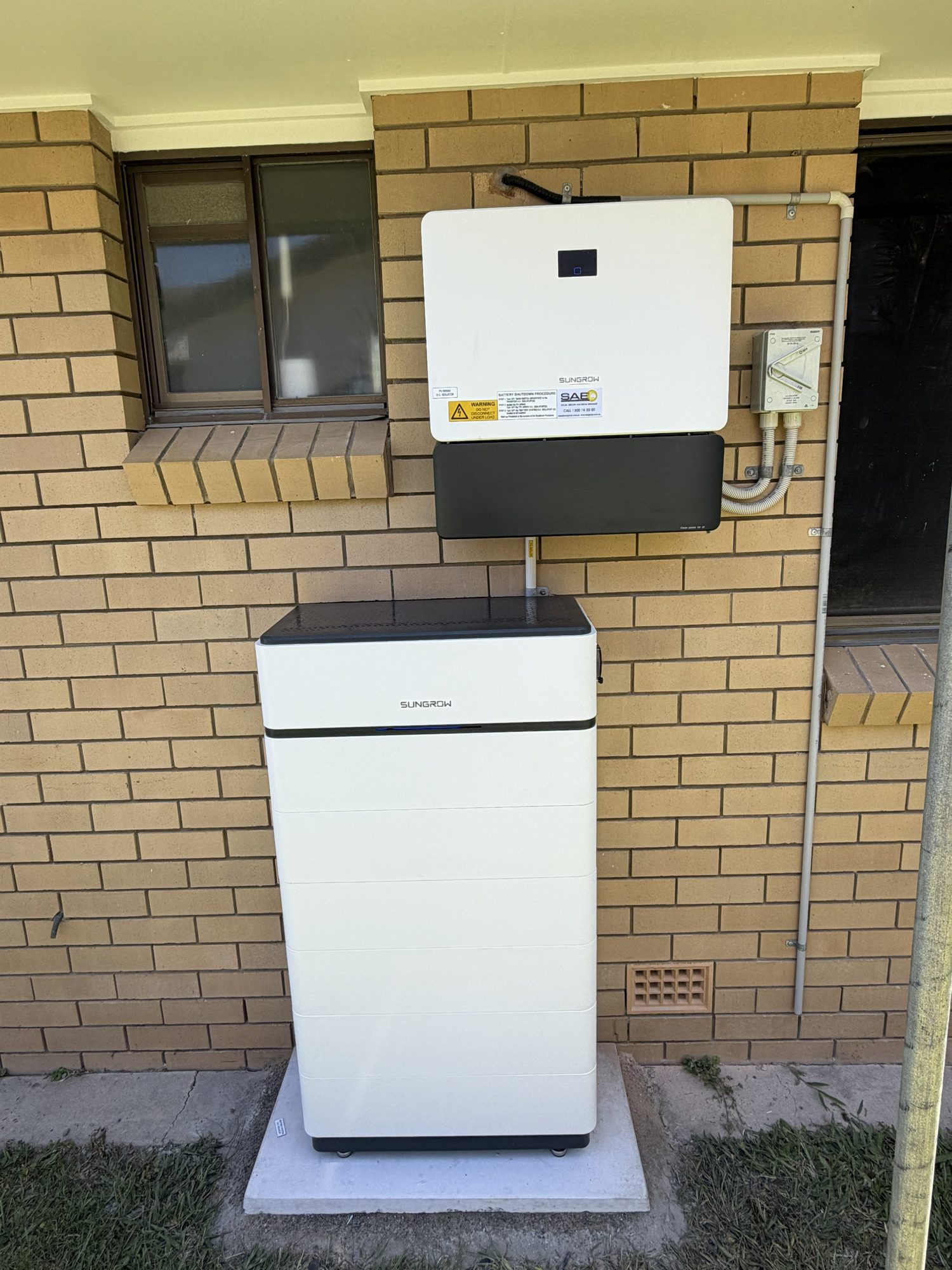
What an SBR battery is
Sungrow’s SBR range is a floor-standing, plug-and-play stack of 3.2 kWh battery modules: from two modules (6.4 kWh) up to eight (25.6 kWh), connected to a compatible Sungrow hybrid inverter. It is rated IP55 for indoor or outdoor mounting. Which size you have depends on the design we did from your power bills.
Reading the iSolarCloud app
- Your plant (your site) is created in iSolarCloud when the system is commissioned, so you log in with the account we set up for you.
- Overview shows the live power flow and how much the battery is charging from solar.
- Tap Device, then Battery, to see the battery’s basic information and operating parameters, including its state of charge (SOC).
- The web version at the iSolarCloud site shows the same details on a computer.
If the app shows no data, the battery usually keeps working: the fault is often the Wi-Fi module. See our Sungrow, Solax and Tesla starting guide.
What the lights on the battery mean
This is Sungrow’s own indicator description for the SBR, in plain English. Your unit may differ slightly by version.
- SOC bars: each lit bar is about 10% of charge.
- Status light, steady blue: normal operation, no fault.
- Status light, slow blinking blue (about every 2 seconds): the battery is powering on, on standby, or in a firmware update, with no fault.
- Status light, fast blinking blue (about every half second): the battery is running a self-test.
- Status light, steady red: a system fault.
- Status light, blinking red: powering on or on standby with a primary fault.
The status light is also the power button, which is one more reason not to touch it.
Modes and backup reserve
The battery does not choose when to charge or discharge: the Sungrow hybrid inverter does, using the settings in iSolarCloud. Sungrow’s inverter manual describes a Backup Mode that is off by default. When it is on, you set a reserved battery level: the minimum charge kept in the battery while the grid is up, so it can feed your backup circuits if there is a blackout. The inverter also has settings for when the battery may discharge and for forced-charge times (useful on an off-peak tariff).
These menus are protected, differ between inverter models and app versions, and a wrong setting can leave you without backup in a blackout. Tell us what you want (for example, “keep more charge for storms”) and we will set it. Our general explainers: Backup Reserve and battery modes.
Firmware
Sungrow’s manual says inverter and battery firmware updates must be done while the system is grid-connected (otherwise backup circuits can lose power or the update can fail), and nothing else should be changed during one. We handle updates for the systems we install. Read more: does my battery update itself?
Warranty and documents
The batteries we install carry a 10-year battery warranty, and Sungrow’s own conditions are set out in its warranty letter. Our 25-year workmanship warranty covers our installation work only; the equipment is covered by Sungrow. If you cannot find your paperwork, call us. More: where to find your warranty documents.
Common alarms and safe first steps
Faults show in iSolarCloud with a numeric code. Sungrow’s manual says many battery faults clear by themselves within about 20 minutes, and that repeated or long-lasting faults need the installer or Sungrow. Others relate to temperature (the battery has an operating range, and a hot or cold spot can trigger an alarm) or to communication cables. A low-charge alarm is more urgent: Sungrow says to switch the system off if the charge falls below 3%, which is a job for us, not you.
- Note the fault code and time from the app, and take a photo of the lights from a safe distance.
- Check whether your power is on and whether the house is running normally.
- Check the router and your Wi-Fi if only the app is affected.
- Do not press the battery button, open covers or switch anything off and on.
- Call us with the code, the photo and a screenshot.
If you ever need to isolate the system quickly, follow the shutdown procedure printed on the label on your inverter, in the order shown. We walk you through it at handover; anything beyond that is for a licensed electrician.
Read more: Sungrow batteries from Sun Connect Solar, Sungrow, Solax and Tesla batteries and SBR vs SBH: what is the difference?
When to call us
If we installed your system, call us on 0483 903 020. Our service help for existing customers is free: we start by working through it with you by phone. If you are not yet a customer, a service call is $250 + GST, which covers one hour on site within 20 km of Mullumbimby; travel further out is quoted separately. Contact us or call 0483 903 020 (Mon-Fri 7am-6pm, Sat 7am-4pm). We do not repair systems we did not install.
Quick questions
Do I need to press the button on my Sungrow battery?
No. The status light on the battery doubles as its power button, and Sungrow says a short press powers the battery on. Leave it alone; if the battery looks off, call us instead of pressing it.
Why is the status light blinking blue?
Sungrow lists a slowly blinking blue light as power-on or standby (or a firmware update) with no fault, and a fast blink as a battery self-test. A steady blue light is normal running.
What does a red status light mean?
Steady red means a system fault, and a blinking red light means the battery is at power-on or standby with a primary fault, per Sungrow. Take a photo, note the fault code in iSolarCloud and call us.
Is an SBR battery the same as an SBH?
No. Both are Sungrow high-voltage lithium iron phosphate batteries built from stackable modules, but the modules are different sizes. See our SBR vs SBH comparison.
Can I update the battery firmware myself?
Please do not. Sungrow’s manual says updates must be done while the system is grid-connected and that you must not change settings or cut power during one. Ask us.
Sources
Last checked 7 October 2026. Only the manufacturer’s, the network’s or the government’s own documents are used; app menus and defaults change between models and versions, so if your screen looks different, call us rather than guess.
- Sungrow’s official SBR064/096/128/160/192/224/256 High Voltage LFP Battery User Manual (Ver 22, February 2025): LED indicator, viewing battery information in iSolarCloud, troubleshooting, maintenance, technical data
- Sungrow Australia’s SBR battery product page
- Sungrow’s official SH8.0RS/SH10RS hybrid inverter user manual (Ver 14, May 2024): iSolarCloud local access, Backup Mode, firmware update, LED panel
Related guides
- I have a Sungrow SBH battery. How do I use the iSolarCloud app and what do the lights mean?
- Sungrow SBR vs SBH: what is the difference?
- What is Backup Reserve and what should I set it to?
- What are the battery modes (self-consumption, time-based, backup) and which should I use?
- Why did my battery not switch over in a blackout?
- How do I update the app, and does my battery update itself?
- Where do I find my battery warranty and the official warranty documents?
- I have a Sungrow, Solax or Tesla system. Where do I start with the app and Wi-Fi?
- What does a red light or a fault on my solar inverter mean?
- All help and how-to guides